Onboard File Storage
This page helps you understand where onboard files are shown in the UI and what the different views mean.
If you are new, think of this page as a file explorer for files that exist onboard the satellite.
What You See On This Page
You will see two tabs:
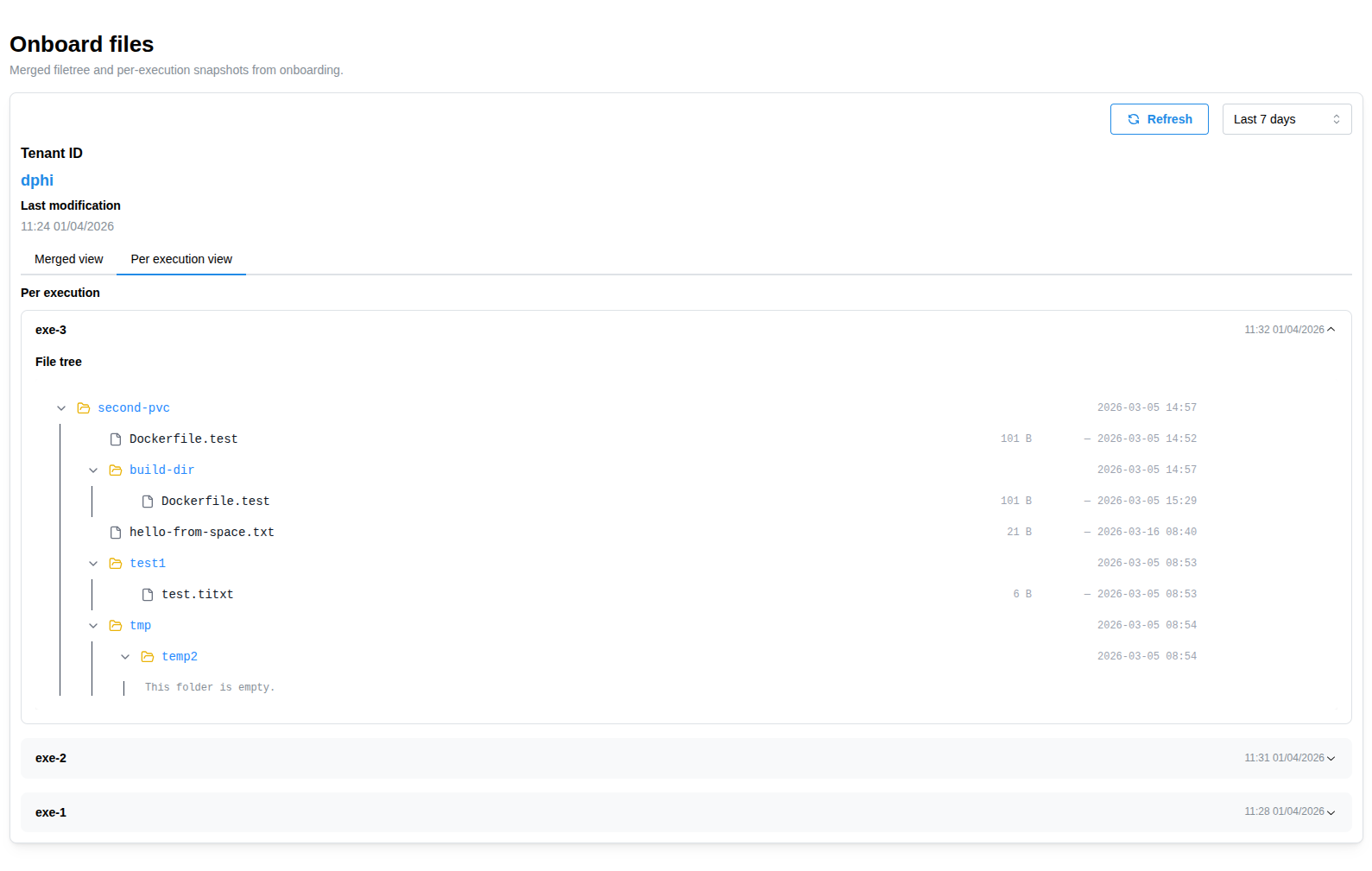
Merged view: one combined tree that merges results from allfiles.listruns.Per execution view: separate trees, one for eachfiles.listrun.
Simple explanation:
Merged viewanswers: "What files do we think are onboard overall?"Per execution viewanswers: "What exactly did this specific run report?"
Why There Are Two Views
Each time an execution runs the files.list task, it will get a snapshot of files at that moment.
Over time, files can be added, moved, or deleted. That means older snapshots may not match the newest one.
The UI gives you both views so you can:
- get a quick high-level picture (
Merged view) - inspect exact historical results (
Per execution view)
How The Merged View Is Built
The system takes every files.list result and combines them into one tree.
This merged tree is useful, but it is not always perfect "ground truth" for every entry.
The latest execution is treated as the strongest signal for what is currently onboard.
Color Meaning
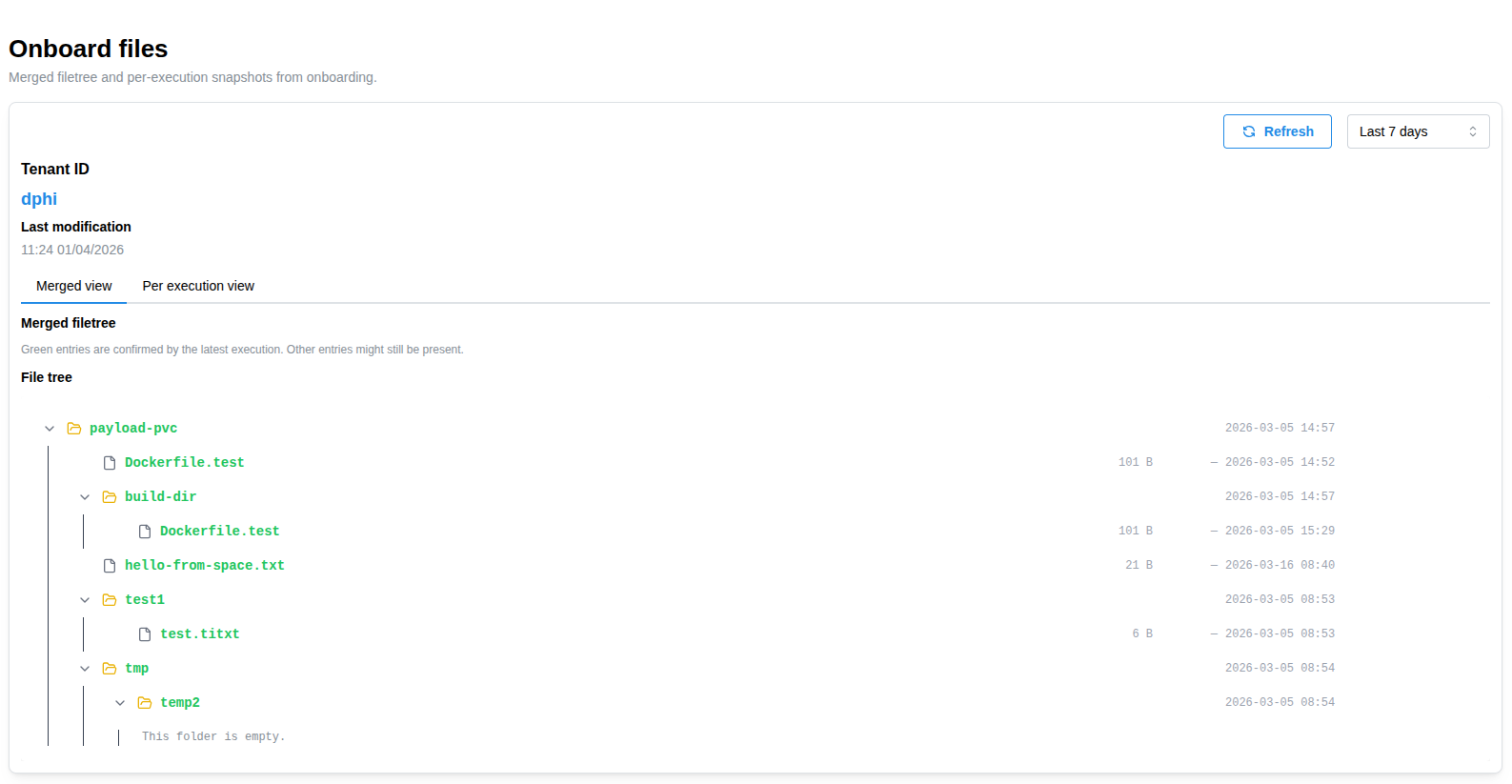
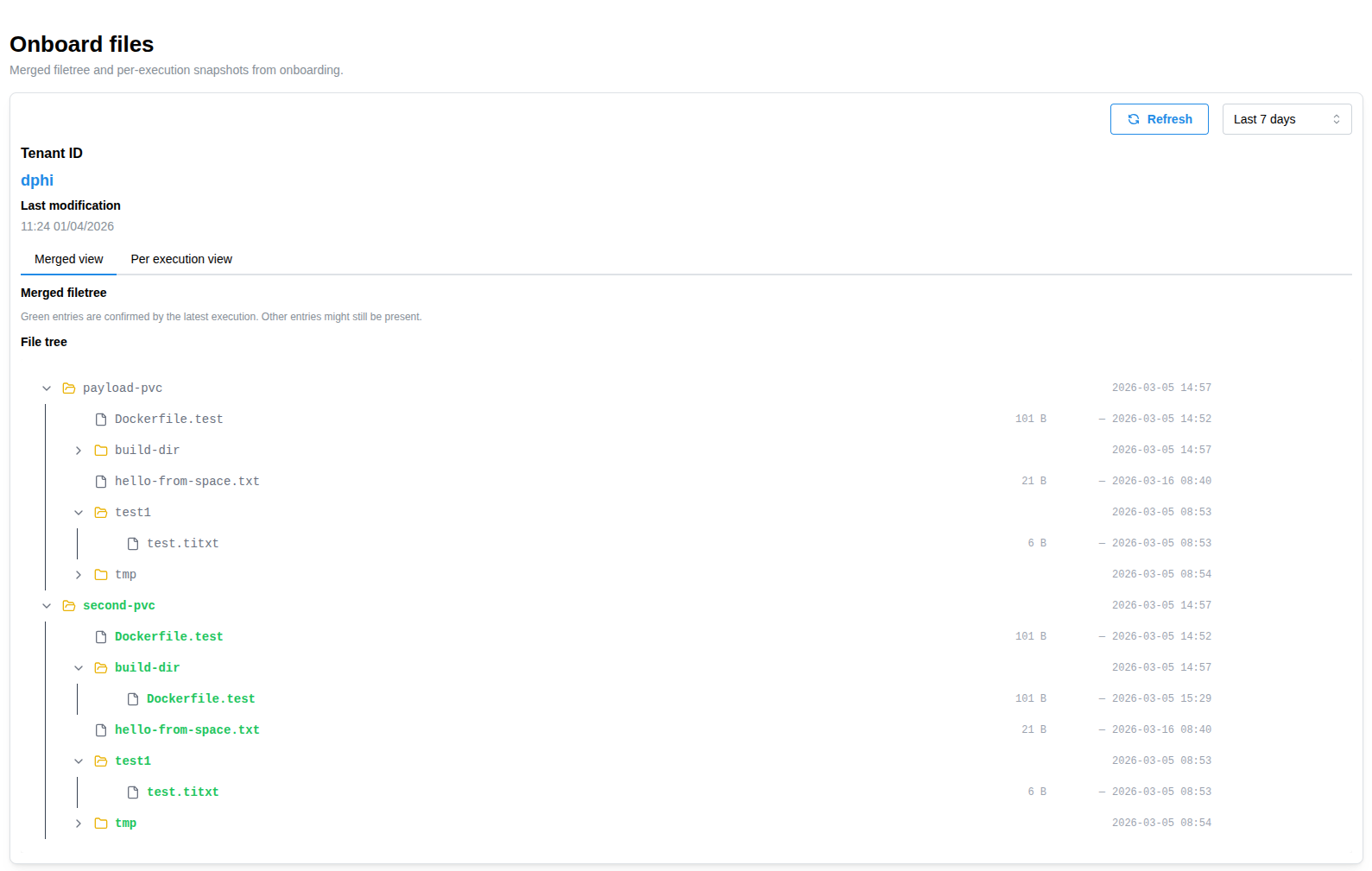
Inside Merged view, names use colors to show confidence:
- Green file/folder name:
This item exists in the latest
files.listresult. You can treat this as "confirmed now" with high confidence. - Light gray file/folder name: This item appeared in older results, but was not seen in the latest one. It might still exist, or it might have been removed/changed.
Quick rule of thumb:
- Green = confirmed by latest snapshot
- Gray = historical, needs confirmation
How To Use This In Practice
- Start in
Merged viewfor a fast overview. - Trust green entries first when you need current state.
- Treat gray entries as "maybe" until confirmed.
- Open
Per execution viewto investigate differences between runs. - If unsure, run a new
files.listto refresh the latest snapshot.
Examples
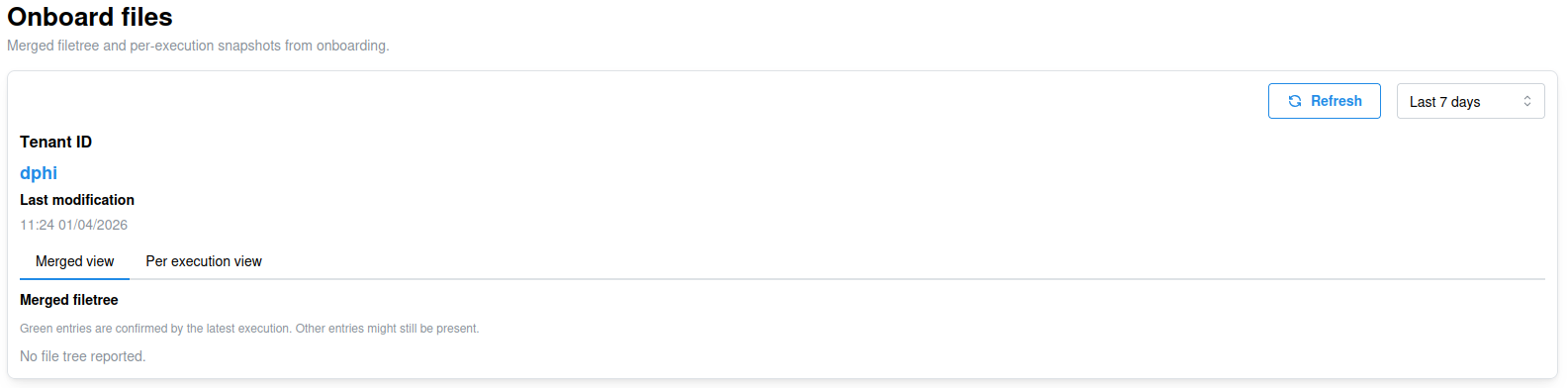
No files.list executions available yet:
Single files.list execution in Merged view:
Multiple files.list executions in Merged view:
Single files.list execution in Per execution view:
Common Beginner Confusion
- "I see a gray file. Is it onboard right now?" Not necessarily. Gray means it was seen before, but not confirmed in the latest run.
- "Why is a file in old execution but not in new one?" The file may have been deleted, moved, renamed, or inaccessible during the latest run.
- "What should I do when I need certainty?"
Run a fresh
files.listand check whether the entry appears in green.