Namespaces
Namespaces are logical containers that isolate operations, executions, and files on the ground. Think of a namespace as a folder for your workflows and the artifacts they produce. This helps keep EM testing, FM operations, and debugging isolated and easy to manage.
Each namespace has its own file area for uploads and downlinked results.
File upload size to namespaces is limited to 5 GB.
Namespace name
A namespace name can be built from alphanumeric characters, hyphens, and underscores with no spaces, for example:
em_testingspace-op-1fm
Namespaces are unique. Two namespaces cannot share the same name.
Organizing operations and files
When creating an operation, the namespace must be defined in the operation YAML definition. If you are doing this using the dashboard, you will be prompted for the namespace and the operation name beforehand:
id: test-health # <-- operation name
namespace: gamma # <-- here we define the namespace for this operation
description: Example execution with Clustergate-2 downlink task.
tasks:
- id: downlink_results
  type: dphi.space.cg2.downlink
  description: Downlink files to ground
  source:
  - hello-from-space.txt
  destination: /first_test
  volume: payload
Once this operation is created, it will be linked to the gamma namespace.
Use short, descriptive names to make namespaces easier to scan in the dashboard.
If the namespace doesn't exist yet, the system creates it automatically when you create your first operation or your first file upload.
Files
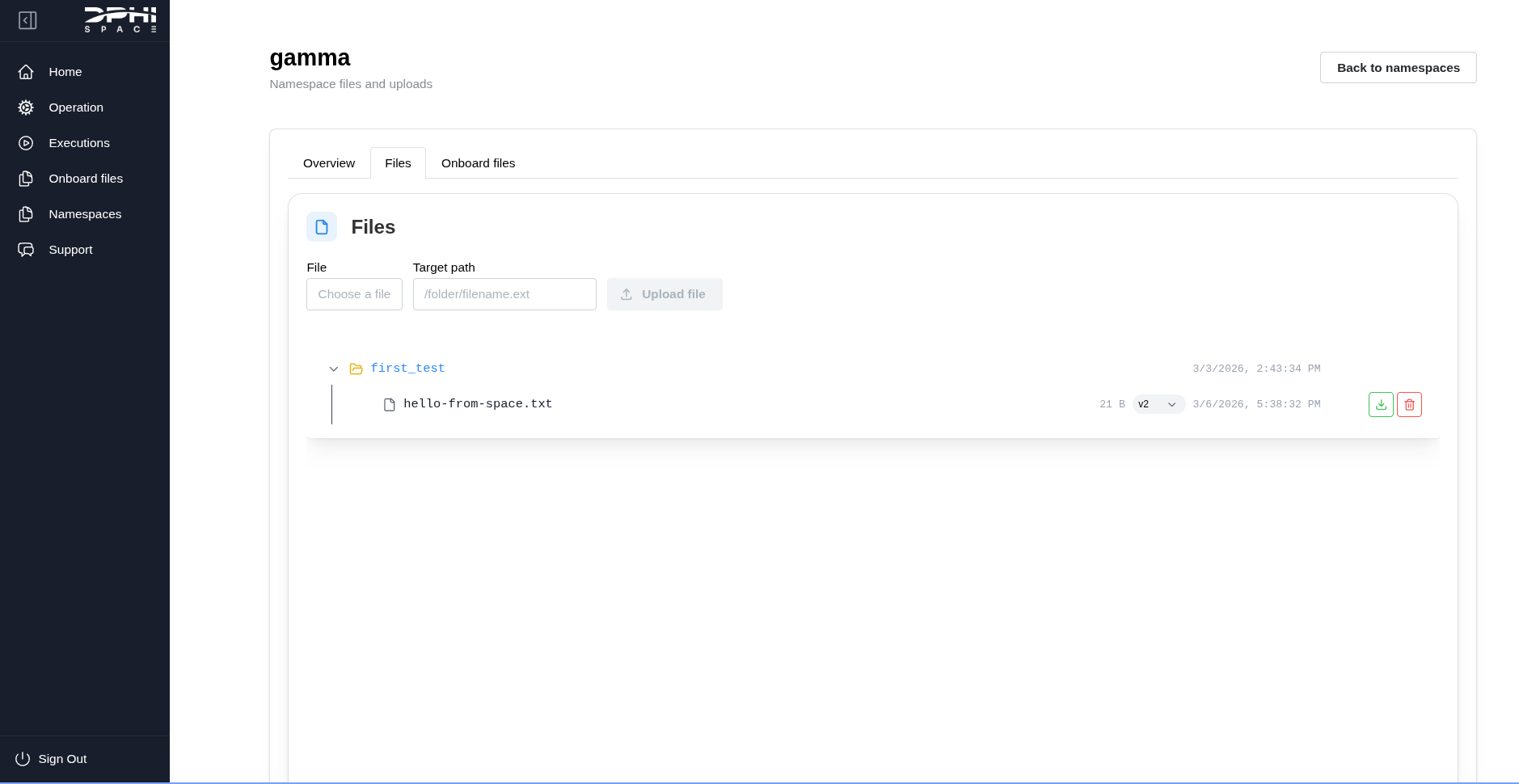
The namespaces view shows all artifacts linked to the namespace, including files, operations, and executions. Uploaded files land in the namespace file area and can be used by tasks like uplink and downlink.
If you need to reorganize files, use folders in the namespace path (for example, /configs/ or /results/). The dashboard will display files and folders in a tree view for quick navigation.
File revisions
Each file has a revision history, which helps you track changes over time. The dashboard keeps previous revisions so you can roll back if a new upload or downlink overwrites the same namespace path. You can select a specific revision from the file list, next to the download button.
Deleting a namespace
Deleting a namespace is a soft delete. The namespace record stays in the database and is marked as deleted instead of being physically removed.
When a namespace is deleted, the backend also soft-deletes the namespace-scoped data attached to it:
- Operations in that namespace
- Executions in that namespace
- Ground namespace file metadata and directory entries
Usage metric documents are preserved, so historical usage continues to count toward quota totals after namespace deletion.
Namespace deletion is rejected if any related execution is already in RUNNING or SCHEDULED state. In that case, nothing in the namespace is deleted.
Deleting namespace files does not physically erase the stored blobs from ground storage. The current behavior is to soft-delete the file metadata and keep prior file revisions on disk/object storage.
File flow
To visualize the file flow from a user's laptop up to the spacecraft and back, use the following example.
Two terms to always keep in mind:
- Namespace: ground storage (uploads and downlinks).
- Volume: onboard storage (uplinks and downlinks).
1 Uploading to the Ground Segment
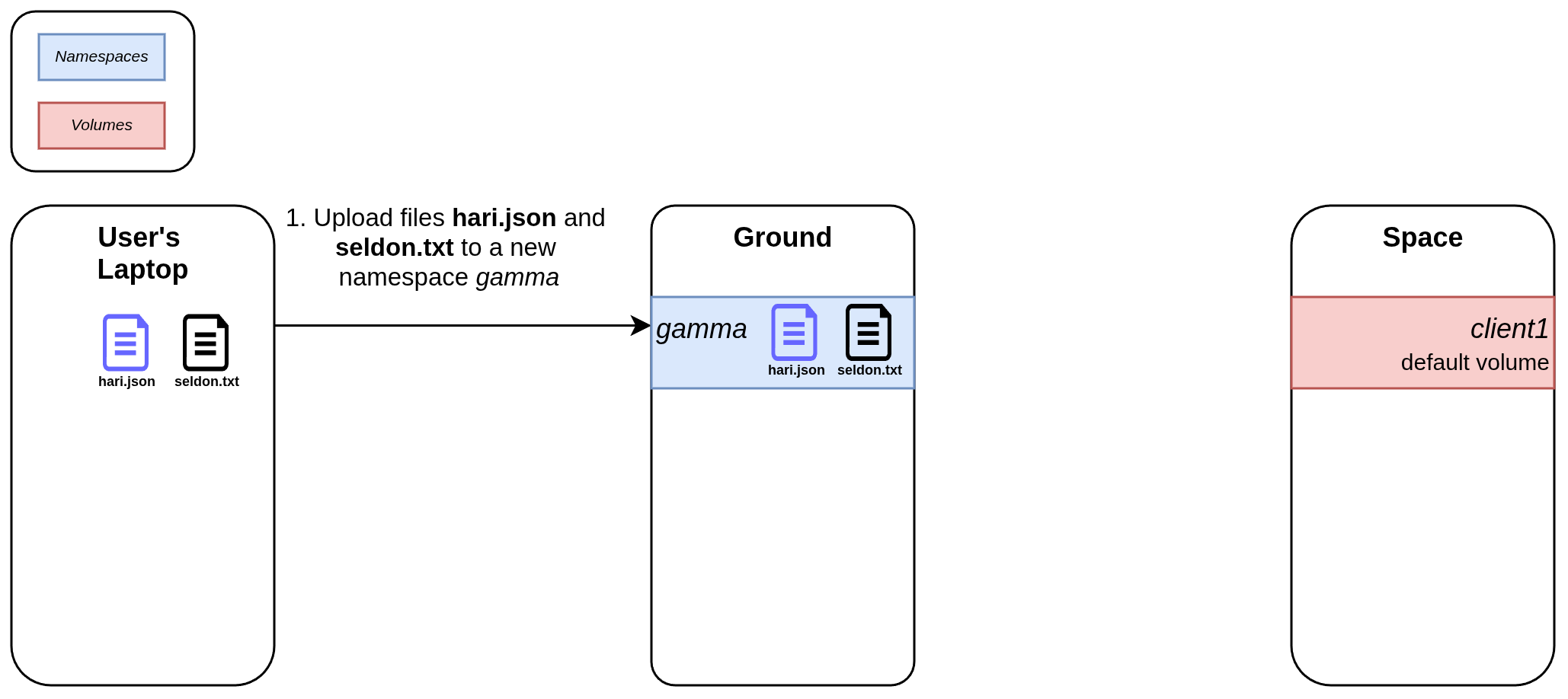
First, upload files to the Ground Segment through the Dashboard UI or an API call. Here we upload hari.json and seldon.txt to a new namespace gamma, which is created automatically if it does not exist yet.
2 Uplinking to the Space Segment
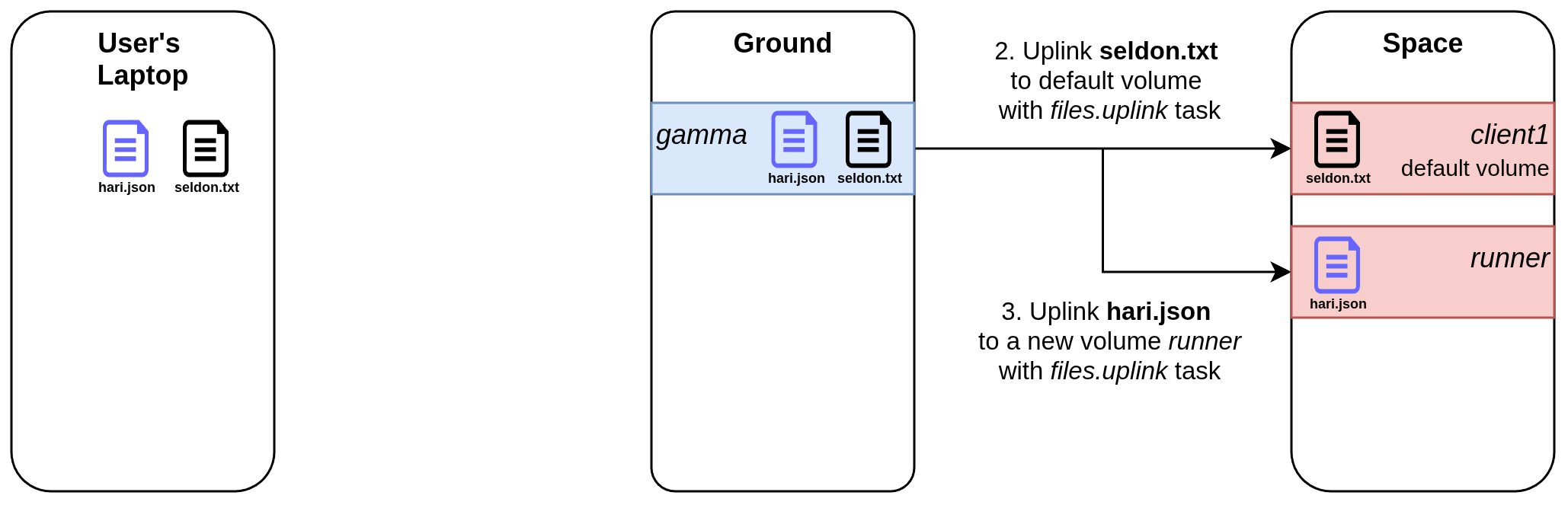
Then uplink both files to the spacecraft by running the dphi.space.cg2.uplink task. In this example we run the task twice to uplink the files to different volumes: the default volume for the first uplink, and runner for the second. The operation file would look like:
id: uplinking-stuff
namespace: gamma      # <-- same namespace where we uploaded the files
system: cg2.em
tasks:
  - id: uplink-hari
    type: dphi.space.cg2.uplink
    description: First uplink
    source:
      - hari.json
    destination: /
    volume: runner   # <- new volume created

  - id: uplink-seldon
    type: dphi.space.cg2.uplink
    description: Second uplink
    source:
      - seldon.txt
    destination: /
    volume: client1    # <- default volume
In both cases, the onboard destination is the root of the volume. The second uplink sends the file to the default volume (client1 in this example). The first uplink sends the file to a new volume (runner), which is created during the uplink process if it does not exist.
3 Request downlinks
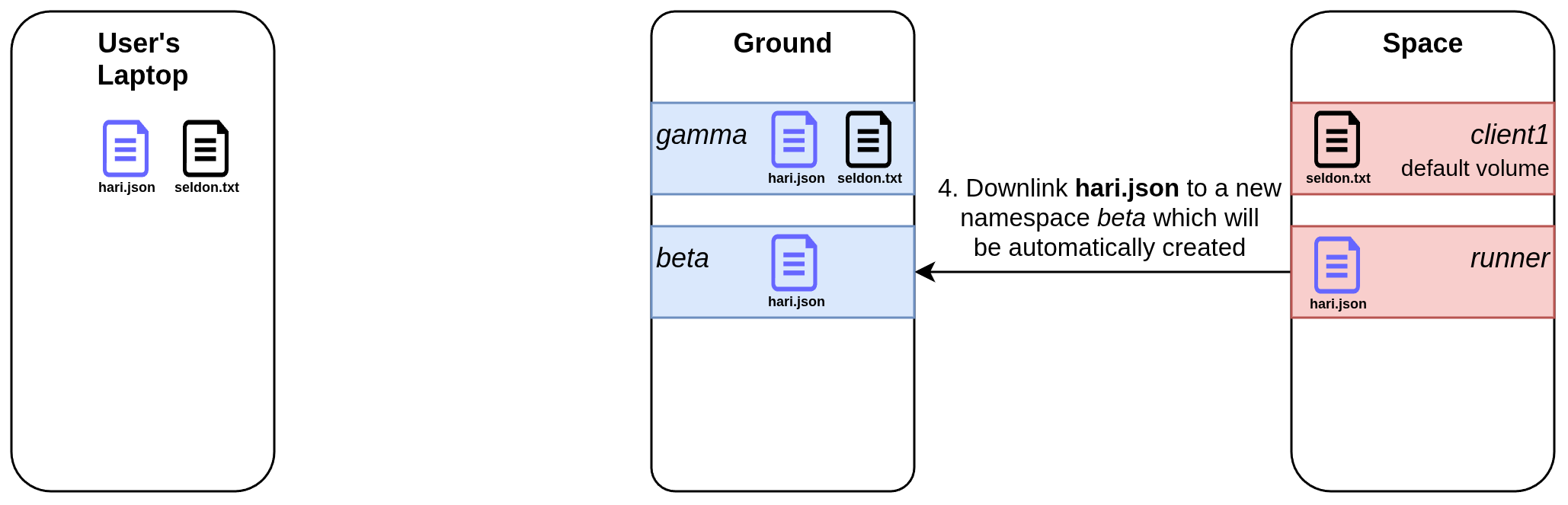
Here we request a downlink of hari.json by running the dphi.space.cg2.downlink task. The operation file would look like:
id: downlink-hari
namespace: beta # <-- new namespace beta
system: cg2.em
tasks:
  - id: downlink-hari
    type: dphi.space.cg2.downlink
    description: Downlink hari.json
    source:
      - hari.json
    volume: runner  # <- onboard volume that contains the file
    destination: /  # <- destination inside the beta namespace
Here we create a new operation called downlink-hari inside a new namespace beta. The file, once recovered from the runner volume onboard, is stored at the root of that namespace (see destination).
Then we request a downlink for seldon.txt, storing it in the solar-ops namespace under the /config folder.
The operation file for this would be:
id: downlink-seldon
namespace: solar-ops # <-- new namespace solar-ops
system: cg2.em
tasks:
  - id: downlink-seldon
    type: dphi.space.cg2.downlink
    description: Downlink seldon.txt
    source:
      - seldon.txt
    volume: client1
    destination: /config
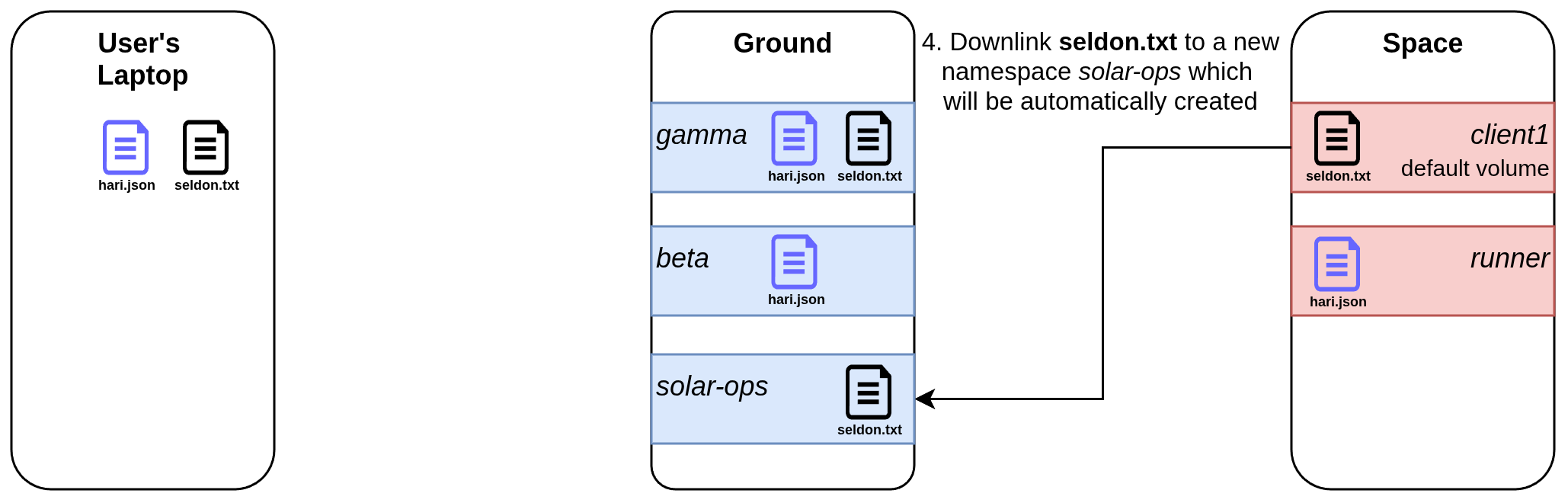
4 Downlink to the original namespace
Finally, we downlink both files from each volume back to the original namespace gamma.
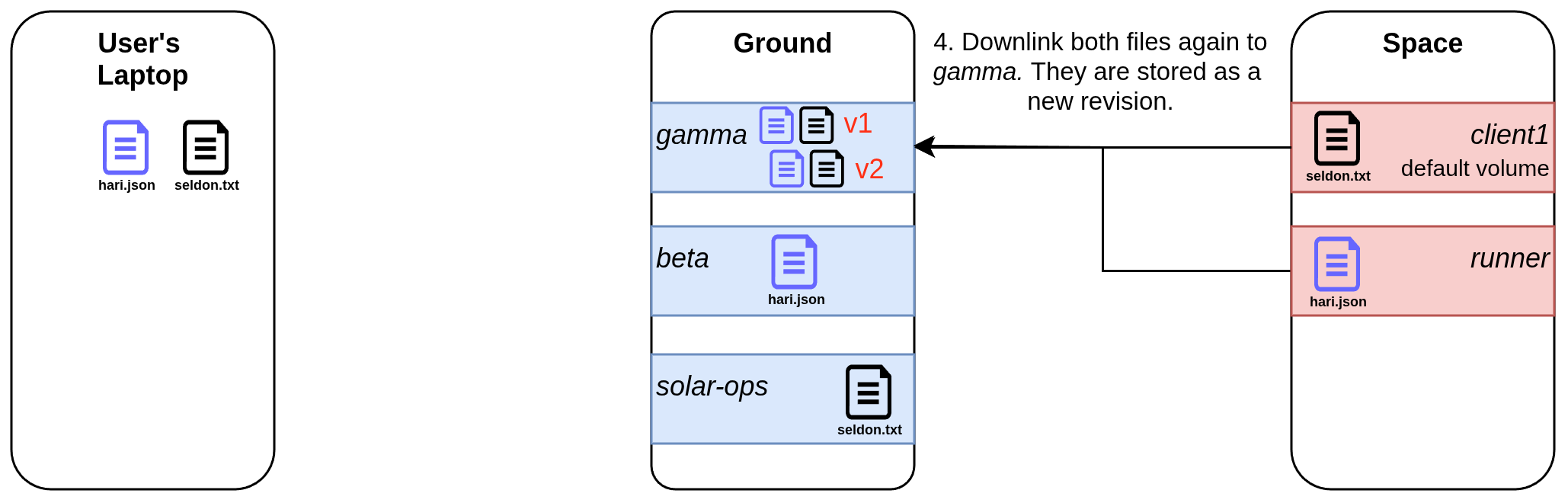
The operation file would be:
id: downlink-both-back
namespace: gamma
system: cg2.em
tasks:
  - id: downlink-seldon
    type: dphi.space.cg2.downlink
    description: Downlink seldon.txt
    source:
      - seldon.txt
    destination: /
    volume: client1

  - id: downlink-hari
    type: dphi.space.cg2.downlink
    description: Downlink hari.json
    source:
      - hari.json
    destination: /
    volume: runner
Because each file exists in a different onboard volume, you need two downlink tasks. If both files were in the same volume, a single task would be enough because source accepts a list.
Because these files already exist in the gamma namespace, the new downlinks would overwrite them. The system keeps a version history instead: the original uploads from step 1 become v1, and the downlinked files become v2. Both versions are retained and can be downloaded or re-uplinked.
Versioning is only maintained on the ground storage. If a file is uplinked onboard with the same name as a pre-existing file, it will be overwritten by the new uplink.